Google Adsense vs Admob – Which is Better?
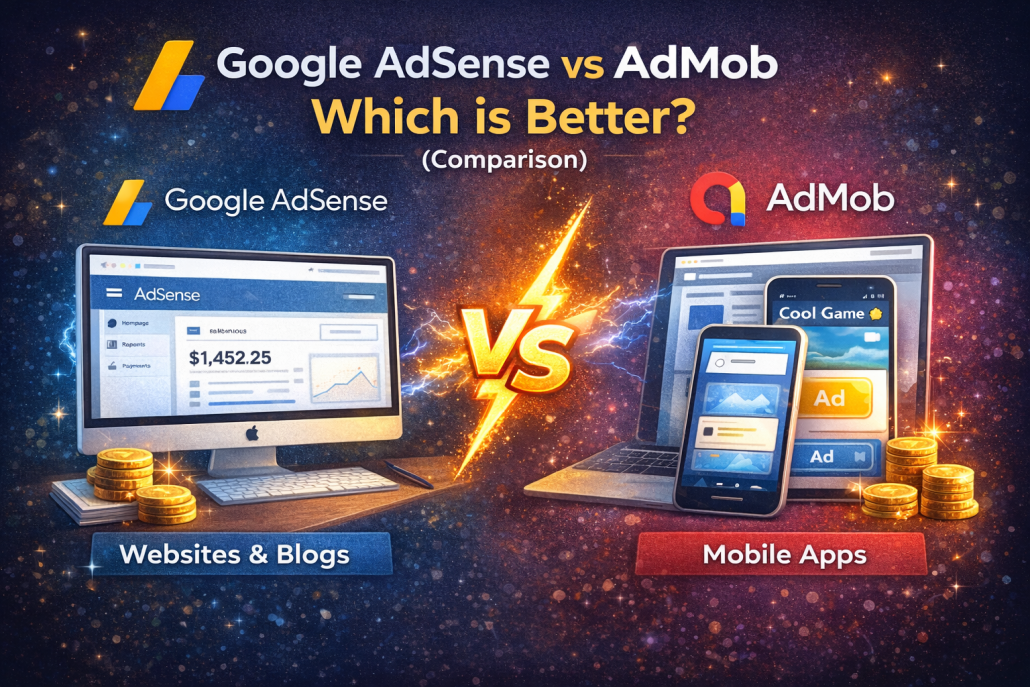
When comparing Google AdMob and

 Google AdSense, the first thing to understand is that

they are built for very different purposes, even though

both are advertising platforms from Google. AdMob is

designed specifically for mobile apps. If you’re

developing an Android or iOS app and want to

 earn money by showing ads inside that app, AdMob

is the platform created for that exact use case.

AdSense, on the other hand, is more creator-focused.

It’s aimed at bloggers, website owners, and content

creators who want to monetize web traffic through ads

placed on websites or YouTube channels.

AdMob’s biggest strength is its revenue potential when

used correctly. Apps with a large and active user base

can generate significant income, especially if users

spend a lot of time inside the app and see ads

frequently. AdMob also offers detailed targeting

options, which helps advertisers reach users who are

more likely to interact with ads. Another advantage is

how well AdMob integrates with other Google tools

like Firebase, Google Analytics, and Google Ads. This

makes it easier to track user behavior, optimize ad

placements, and improve overall monetization. For

developers who are already using Google’s ecosystem,

setting up AdMob is usually straightforward.

However, AdMob does have clear limitations. It only

works for mobile apps. If you’re running a website,

blog, or any kind of web-based platform, AdMob

simply isn’t an option. This makes the choice very

clear for many people: if your product is an app,

AdMob fits; if it’s a website, you need something else.

That’s where Google AdSense comes in. AdSense is

built for websites and content platforms. It allows

publishers to earn money by displaying ads on blogs,

informational websites, and YouTube channels. The

system works on a revenue-sharing model, meaning

you earn a portion of the income generated when users

view or click on ads. AdSense also offers a variety of

ad formats, giving creators flexibility in how ads are

displayed and how they fit into their content.

The trade-off with AdSense is that revenue potential is

often lower compared to AdMob, especially for smaller

sites or websites with low traffic. This isn’t unique to

AdSense—any ad network depends heavily on

audience size and engagement. Without consistent

traffic, earnings will naturally be limited. Still, for

content creators and bloggers, AdSense remains one of

the simplest and most accessible ways to start monetizing a website.

Choosing between AdMob and AdSense ultimately

depends on what you’re building. If you’re creating a

mobile app and want to monetize user activity inside

the app, AdMob is the clear choice. If you’re running a

blog, a content-driven website, or a YouTube channel,

AdSense is the platform designed for you.

Understanding this distinction upfront saves time and

helps you focus on the tool that actually matches your

goals.

Tip: For external links, consider setting them to open

in a new tab.
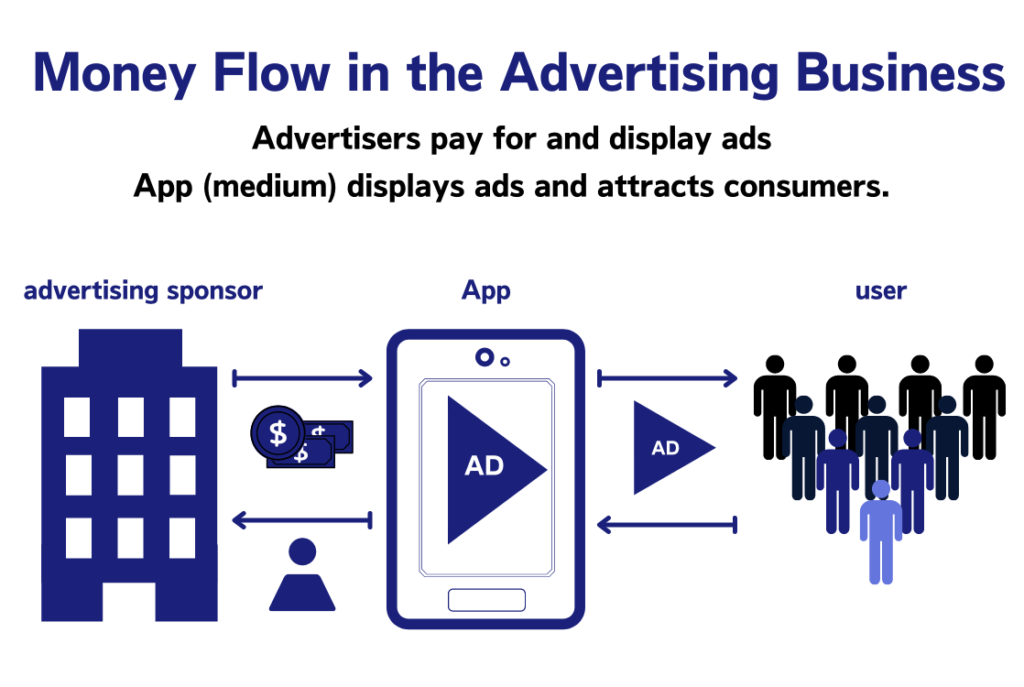
How to get paid with AdMob

This guide explains how to prepare your Google AdMob account so you can start receiving payments. Before any money can be sent, there are a few important requirements and steps you need to complete. The process is straightforward, but it’s important to understand it properly to avoid delays later on.

To begin with, AdMob uses several revenue thresholds that determine when certain actions become available or required. These thresholds depend on the currency and country associated with your account, so the exact values may vary. Some of them simply unlock features, while others require you to actively provide information or verification.

The first threshold allows you to choose a payment method. Once your earnings reach this point, you can select how you want to be paid, such as bank transfer, wire transfer, or other options depending on your location. The second threshold is related to identity verification. In some regions, Google needs to confirm who you are by collecting personal details like your name, address, and date of birth, and in certain cases, uploading an official ID document.

The third threshold focuses on address verification. When your earnings reach this level, Google sends a PIN code by mail to the payment address you provided. You must enter this PIN into your AdMob account to confirm that your address is correct. The fourth is the payment threshold, which determines when you’re actually eligible to receive money. Once your verified balance passes this amount, payments can be issued. Finally, there is a cancellation threshold. If you ever close your account and your remaining balance is above this limit, you’ll receive a final payout after all other requirements have been met.

After understanding the thresholds, the next part is completing the five practical steps required to receive your first payment. The first step is selecting your payment method. This is done inside your AdMob account under the Payments section, where you choose how you want to be paid and save your preferences.

The second step involves tax information. Depending on your country, you may be required to submit tax details. This is handled directly inside the AdMob dashboard, where Google provides guidance to help you choose and complete the correct tax form. Not all publishers are required to do this, but if it applies to you, it’s a mandatory step.

The third step is identity verification. If AdMob requests it, you’ll see a notification asking you to upload documents to confirm your identity. This helps ensure payments are sent securely and to the correct person.

Next comes address and payee verification. Once your earnings are high enough, AdMob sends a PIN code by regular mail to your address. This usually takes a few weeks. You must enter this code in your account before payments can be released. In some countries, phone number verification may also be required, where you confirm a code during a scheduled call.

The final step is simply earning enough to pass the payment threshold. AdMob operates on a monthly payment cycle. Your earnings are finalized at the start of each month, and if your balance is above the threshold and there are no issues on your account, payments are typically sent between the 21st and 26th of that month.

If you ever have questions—such as why a payment hasn’t arrived yet, the difference between estimated and finalized earnings, or issues with verification—AdMob provides detailed payment FAQs and help resources. Following these steps carefully ensures your account is fully set up and ready to receive payments smoothly, without unnecessary delays.

How to add an app to your AdMob account

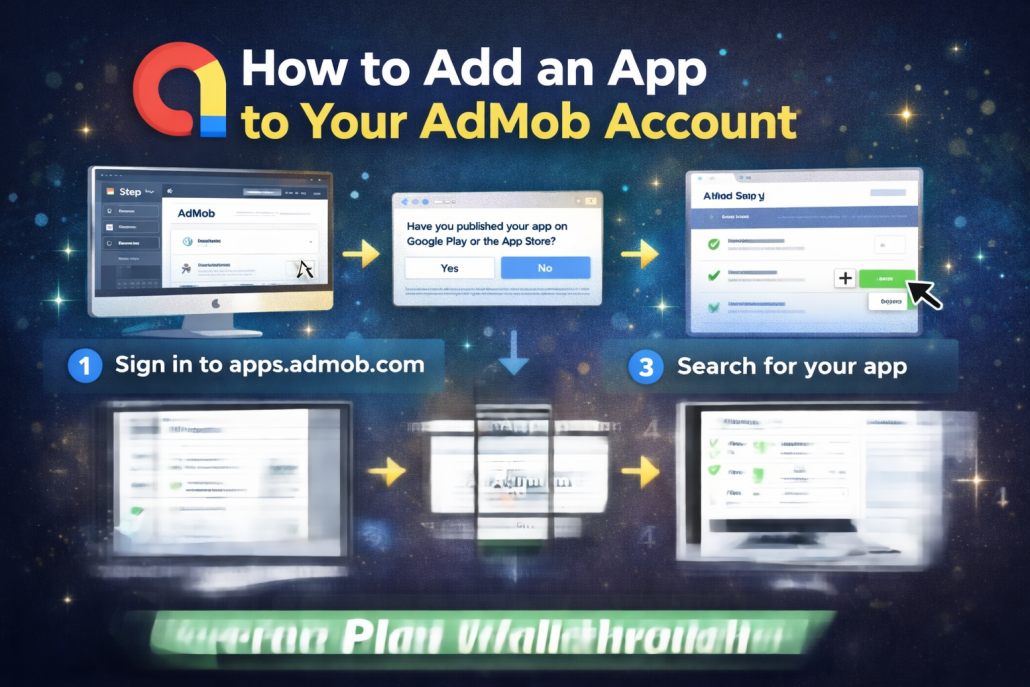
This AdMob tutorial explains how to add an app to your AdMob account, which is the first essential step to start earning money from ads. An important point is that you can add both published and unpublished apps. If you register an app as unpublished, you can later link it to its official store page at any time. The tutorial is structured around three main parts:

  1. adding a published app,
  2. adding an unpublished app, and
  3. creating an ad unit.

Scenario 1: Your app is already published (Google Play or App Store)

First, sign in to your AdMob account at apps.admob.com. From the left sidebar, click Apps, then select the blue Add App button. A dialog will ask whether your app is published on Google Play or the App Store—here you choose Yes. Enter your app’s name, click Search, find your app in the results, and click Add next to it. With that, your app is successfully added to your AdMob account.

After adding the app, the next step is creating an Ad Unit, which is the placement inside your app where ads appear. Click Create Ad Unit, choose one of the available ad formats—Banner, Interstitial, Rewarded, or Native—then give the ad unit a clear, recognizable name and click Create Ad Unit. AdMob will then show you instructions on how to integrate the ad unit into your app, and you can also email these instructions to yourself or a teammate. Before showing real ads, it’s strongly recommended to test everything using test ads.

Scenario 2: Your app is not published yet

Even if your app hasn’t been released on an app store, you can still add it to AdMob to prepare and test ads. The process is very similar: sign in to AdMob, go to Apps, click Add App, and this time answer No when asked if the app is published. You’ll then provide basic details such as the app name and platform (Android or iOS) and click Add. After that, you can create ad units in exactly the same way as with a published app.

If you later publish the app and want to link the previously unpublished entry to its store listing, go to Apps, select the unpublished app, open App Settings, and edit the App name & store link section using the pencil icon. Choose to link the app to Google Play or the App Store, search for the app by name, select it from the results, and confirm by clicking Link App. Keep in mind that newly published apps may take a few days to appear in search results, and this linking action cannot be undone—so accuracy is important.

Scenario 3: Creating an ad unit for an app already in your account

To add another ad unit to an app you’ve already set up, sign in to AdMob, select the app under Apps, go to Ad Units, and click Get Started (or Add Ad Unit if you already have some). Choose the ad format, name the unit, and click Create Ad Unit. As before, AdMob provides integration instructions, and you should test the setup with test ads before going live.

In closing, the tutorial emphasizes reviewing additional resources for best results and following the AdMob channel for more tips and strategies to improve app monetization.

How to add an app to your AdMob account

This guide explains how to add an app to your Google AdMob account, which is the first required step if you want to start monetizing your app with ads. Whether your app is already published on an app store or still in development, AdMob allows you to set it up and prepare ad units in advance. The process is flexible, so you can start early and connect everything properly when your app is ready.

If your app is already published on Google Play or the App Store, the setup is straightforward. After signing in to your AdMob account, you navigate to the Apps section and choose to add a new app. Since the app is live, you simply search for its name, select it from the results, and add it to your account. Once this is done, the app is officially linked to AdMob and ready for monetization.

The next step is creating an ad unit. Ad units are the placements inside your app where ads will appear. AdMob lets you choose between several formats, such as banner, interstitial, rewarded, and native ads. After selecting a format, you give the ad unit a clear, descriptive name so it’s easy to recognize later. Once created, AdMob provides instructions on how to integrate the ad unit into your app, which you can follow yourself or share with a developer. Before showing real ads to users, it’s strongly recommended to test everything using AdMob’s test ads to avoid policy issues.

AdMob also supports apps that have not yet been published. In this case, the setup steps are nearly the same, except that you indicate the app is unpublished when prompted. You then provide basic details such as the app name and platform. This allows you to create ad units and test ad behavior even before the app goes live. When the app is eventually published, you can return to AdMob and link it to its store listing.

Linking an unpublished app to its store listing requires a few careful steps. After signing in, you select the unpublished app from your app list, open its settings, and edit the app name and store link section. From there, you search for the app on the appropriate store and link it once it appears. Since this action cannot be undone, it’s important to double-check that the correct app is selected. Newly published apps may take a few days to become searchable in AdMob.

You can also create additional ad units at any time for apps already in your account. This is done by selecting the app, opening the Ad Units section, and adding a new unit with your chosen format and name. As with all ad units, testing with test ads before enabling real ads is an essential step.

Although, the process is designed to be flexible and beginner-friendly. You can add apps before or after publication, create and test ad units safely, and adjust your setup as your app grows. Taking the time to set things up correctly helps ensure a smoother monetization experience and avoids problems later on.

How to choose the best ad format for your app

This tutorial walks through the main advertising formats available in Google AdMob and explains how to choose the right option for your app. The focus is on helping developers understand how ads appear inside an app, what types of ads each format supports, and how to balance monetization with a good user experience. By the end, the goal is to give a practical foundation so you can make informed decisions rather than guessing or blindly copying what others do.

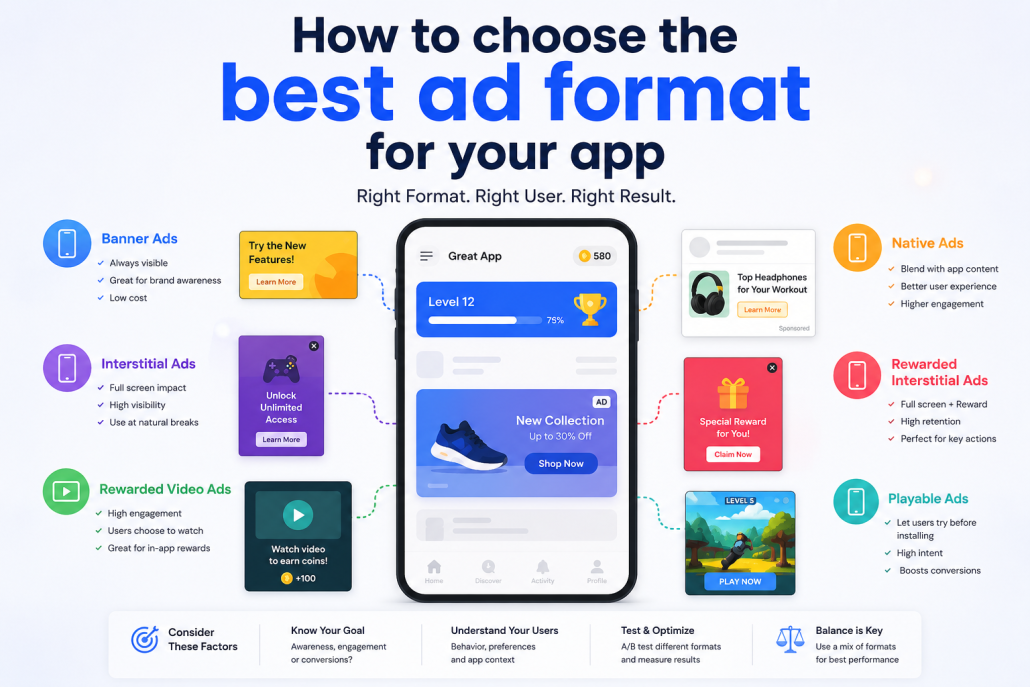
AdMob currently offers four core ad formats: banner, interstitial, rewarded, and native ads. Each format controls how ads are displayed and when users see them. Banner ads are small rectangular units that sit at the top or bottom of the screen and can refresh automatically over time. They are simple to implement and work well when there is unused space in the layout. Newer adaptive banner ads improve on older fixed or smart banners by automatically adjusting their size to fit different screen resolutions, which helps avoid ads that look too small or awkward on modern devices.

Interstitial ads take over the full screen and are best shown at natural breaks in the app experience, such as after finishing a game level or while transitioning between screens. When used correctly, they can generate strong revenue without frustrating users. Rewarded ads work differently by offering users something valuable—like extra lives, coins, or bonuses—in exchange for watching a video or interacting with an ad. This format is especially effective in games or apps where rewards make sense and can increase engagement rather than interrupt it.

Native ads are designed to blend into the app’s interface so they feel like part of the content instead of traditional advertisements. Because they are highly customizable, they require more design effort, but they often deliver a smoother experience and better long-term performance when done well. Native ads are commonly used in content-heavy apps where visual consistency matters.

Beyond formats, AdMob also supports different ad types, such as text and image ads, rich media, interactive ads, and video ads. Not every format supports every ad type. For example, banners can show text, image, rich media, and video ads but not interactive ones, while rewarded ads focus on video and interactive experiences only. Understanding these limitations helps avoid mismatches between ad format and app design.

Choosing the right ad format depends on several factors. You should consider whether the ad fits naturally into your app layout, how it performs in real tests in terms of both revenue and user retention, and whether it complements the overall user experience. Technical complexity also matters—banners are often a good starting point for beginners, while rewarded or native ads may require more planning and design work.

Testing plays a crucial role in monetization. By experimenting with different formats and placements, you can see what works best for your specific audience. Above all, user experience should guide every decision. Ads that respect users and feel well integrated tend to generate more revenue over time, because satisfied users are more likely to keep using the app. Whether you choose banners, interstitials, rewarded ads, or native ads, the key is to place them thoughtfully and test continuously to find the right balance.

Building a WordPress Site with ZipWP AI: Free Plan Walkthrough

”

In this paragraph we will focus on the free version of the ZipWP AI

 WordPress builder. In the free version we’re kind of limited, but we

 can just start playing around and create some basic WordPress

 websites using the power of AI. Let’s go and see how it works.


This content is based on hands-on experience with WordPress and

 modern website-building tools, focusing on how these platforms are

 used in real projects, from setup and structure to design and

 customization. Now let’s see what we can do with the free version of

 ZipWP.

Now let’s see what I can do with the free version of ZipWP. This is

 quite interesting because we can test out some of the functionalities of this new AI builder.

The first thing we can do is create a staging site. If we go here and

 click on “create new,” we can create a blank website, which is the

 same link that we can find here on the left side. Basically, there are

 just different ways to reach this functionality. If we choose “create

 a blank site,” this is a simple test we can use, and it will create an


 empty website — a completely free, empty WordPress installation.

 I’ll name it WP Roads test site. It’s not a multisite and I’m not using a

 blueprint, so I click create site. In a few seconds, I can click here to

 log in to my website, which is quite amazing — it takes almost no time

 at all. This is my staging website, and if you have a free account, you

 can use these free staging websites for 24 hours, which is amazing.


You can basically use them to test things, tweak settings, and

 experiment with WordPress however you want. Of course, you need

 to be careful because in the free version you’re limited to a maximum

 of two websites, one gigabyte of disk space, and you can only be a

 solo team member. These staging sites also have an expiration date,

 and if you want to make them permanent, you need to upgrade.


Let’s see what else you can do with the free version. You can also

 build websites using AI. There are some limitations, but it’s still quite

 impressive. We start by giving the website a name — I’ll call it WP

 Roads. It’s a website for WordPress tutorials aimed at

 entrepreneurs, and the language will be English. After clicking

 continue, I need to describe the website. I can grab a couple of

 sentences from my actual site, insert them here, and even improve

 them using AI.


Next, I’m asked to provide contact details, which will be used on the

 website, for example on the contact or about page. I can skip the

 phone number and address, but I’ll add my YouTube channel. After

 that, ZipWP asks me to select relevant images. At the moment, it

 doesn’t generate images from scratch, so I just select images that

 match my taste or upload my own. I select a few images and

 continue.


Then I choose the website structure from several examples. I can

 preview different styles and see which pages and plugins will be

 included. In this case, I like the Spectra-based option with five pages:

 Home, About, Services, Blog, and Contact. I can upload a logo, manage

 fonts and colors, and select a color combination I like. Premium

 designs are locked behind an upgrade, so I stick with an included

 template and continue.

I can also choose whether to install additional plugins like

 donation tools, sales funnels, automation, or live chat. I decide to

 install them for testing. Then the site starts building. According to

 the website, it should take less than 60 seconds. Whether it’s exactly

 60 seconds or not, it’s still very fast.


Once it’s done, I get a URL, login credentials, and I can view the

 website. The homepage, about page, blog, and contact form are

 already in place, and the YouTube link works perfectly. The

 homepage looks good, includes placeholder reviews, and the blog

 structure is minimal but clean.


In the backend, I can see the installed plugins and theme. The theme

 used is Astra, and Spectra is installed for design blocks. Some

 plugins I don’t need, so I remove them. What’s interesting is that

 under Appearance, I also have a ZipWP option, which lets me

 customize the site using ZipWP’s own interface, separate from the

 standard WordPress Customizer. From there, I can change colors,

 fonts, and upload a logo in just a few seconds.


When editing pages, I can also use Spectra’s integrated design

 library. This library works with the ZipWP AI engine and lets me

 preview and personalize sections dynamically. I can update images,

 adjust colors based on my palette, and even regenerate call-to-

action sections using AI credits. Everything stays visually

 consistent, which is impressive.


Finally, back in the ZipWP dashboard, I can see my two staging

 websites, their storage usage, and their 24-hour expiration. These

 sites are perfect for quick tests, and if I’m happy with the result, I

 can recreate the site elsewhere. Projects and blueprints are locked

 behind an upgrade, but for a free plan, this is a solid starting point

 to understand how ZipWP works.


This is the free version of ZipWP — a practical way to get familiar

 with the tool and experiment with AI-powered website building.

4 WordPress Plugins with AI Features You Should Be Using

In simple terms, this content explains that many well-known

WordPress plugins people have been using for years now include

serious AI capabilities, even though these features were added quietly

and without much marketing noise. The purpose is not to create hype,

but to highlight practical, real-world ways AI is already being used

inside WordPress.

At a high level, the message is that AI is no longer just an optional

add-on or an experimental feature in WordPress. It is now built directly

into everyday tools such as forms, translations, documentation

systems, online courses, and even web hosting platforms. These AI

features are designed to save time, reduce repetitive manual work, and

remove friction—especially for site owners, agencies, and content

creators who manage multiple tasks at once.

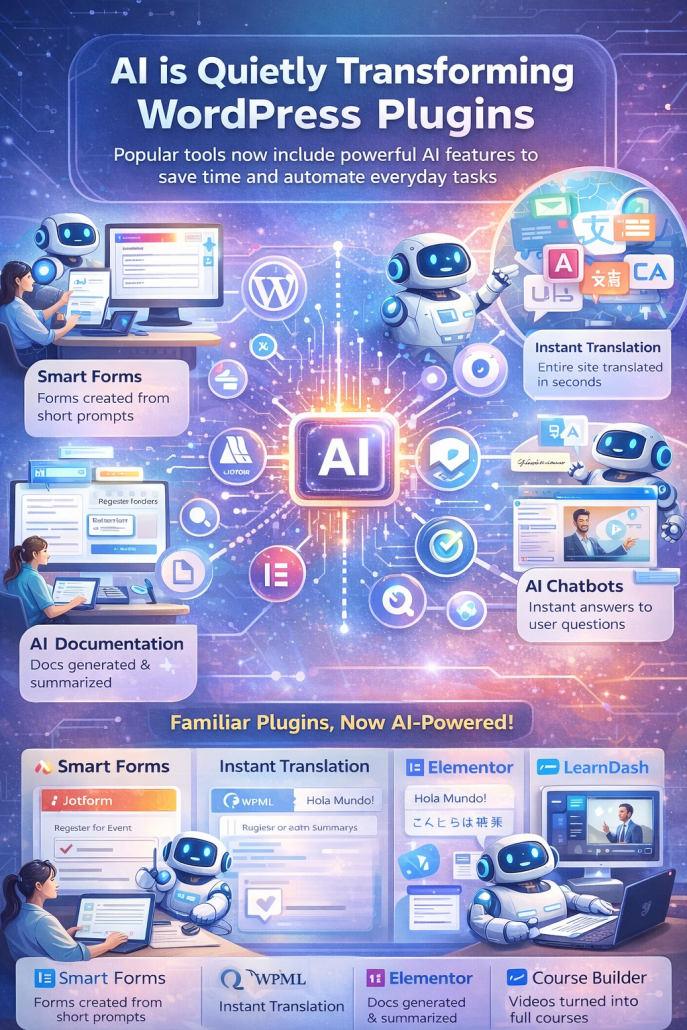
AI is being applied in very concrete and useful ways. It can

automatically generate full forms from short descriptions, instantly

translate entire websites into multiple languages, write and summarize

documentation inside WordPress, power chatbots that search through

knowledge bases, turn video playlists into structured online courses,

and assist with server monitoring by identifying and resolving hosting

issues before they cause real problems.

To make this more tangible, the content walks through several

WordPress plugins as examples. These include a form builder that

creates complete forms using AI prompts, a translation plugin that

converts sites into other languages in real time, a documentation tool

that can write, summarize, and support AI chat over help articles, and a

course platform that automatically generates course structures or

converts videos into lessons.

There is also a strong focus on AI at the infrastructure level. Hosting

providers are now using AI to monitor servers continuously, diagnose

performance or stability issues, and even fix common problems

automatically—saving hours of downtime and reducing the need for

manual support.

Overall, the message is clear: AI in WordPress is not about replacing

people. It is about speeding up work, eliminating repetitive tasks, and

helping site owners and agencies operate faster and smarter using tools

they already know and trust.

A Practical Guide to Building a WordPress Website with Elementor AI

The content walks through a modern, practical approach to creating a professional WordPress website by combining Elementor AI with ZipWP. The central idea is that a fully functional website can be produced very quickly, while still remaining flexible and easy to refine after launch.

The process begins with selecting a solid technical foundation. Before any design work starts, a domain name and reliable hosting are required. The guide points to Hostinger’s Business plan as a suitable option because of its fast NVMe-based storage, built-in security features such as SSL, and domain privacy that keeps personal contact details protected. From a budgeting perspective, the setup is positioned as accessible, offering a free domain and optional discounts to reduce initial costs.

Once hosting is ready, WordPress is installed and prepared for use. Rather than building on top of default content, the approach encourages starting with a clean workspace. This includes removing sample posts, pages, and unused plugins so the dashboard stays simple and efficient. Early optimizations are also applied, such as using readable URLs and ensuring the site runs on HTTPS to improve security and credibility.

At the core of the workflow is AI-assisted website creation. Using the ZipWP builder through the Starter Templates plugin, users describe their website in plain language—its purpose, audience, and offerings. AI then refines this input into clearer, more professional text and uses it to generate layouts and structure. Images can be selected from royalty-free libraries or uploaded manually, with careful file naming recommended to support better search visibility.

After the initial site is generated, further refinement happens through Elementor together with the Astra theme. Astra provides the overall layout framework, while Elementor allows full visual control over pages. Global style settings make it possible to update colors, typography, and button styles across the entire site at once. Additional design options—such as fixed background effects, decorative section dividers, and mobile-specific layout adjustments—help enhance the look and feel without writing custom code.

For projects that go beyond a basic website, the content also mentions optional enhancements. One example is integrating an online booking system so visitors can schedule services directly on the site. For larger teams or more advanced needs, a paid version of the AI builder is referenced, offering collaboration features and deeper control over site structure.

Overall, the focus is on speed, clarity, and long-term usability. AI is positioned as a way to accelerate the first version of a website, while WordPress and Elementor provide the tools needed to shape, expand, and maintain it over time.

AI-Enhanced Websites

AI can be very useful on websites when used with intention, but it’s not a magic solution.

On the positive side, AI improves user experience by offering instant help, supports faster content creation, automates repetitive tasks, assists with SEO basics, and enables simple personalization for different visitors. This can save time, reduce workload, and make a website feel more responsive and modern.

On the downside, AI can produce generic content if not guided properly, feel cold or robotic when overused, raise privacy and data concerns, and require ongoing monitoring and refinement. Relying too heavily on AI can also weaken human judgment and brand authenticity.

In short, AI works best as a supportive tool—used selectively to reduce friction and enhance the experience, not to replace human thinking or connection.

How to Build a Professional Website Fast with WordPress, Elementor, and AI

Build a Website Faster Than You Think (WordPress + Elementor + AI)

Building a website used to feel like a big project, but today it can be surprisingly quick—especially when you combine WordPress, Elementor, and a little help from AI. In this tutorial, I’ll guide you through the full process in a simple, practical way. By the end, you won’t just have a “nice-looking demo”—you’ll have a clean website you can truly edit, improve, and grow.

Step 1: Get Your Website Online (Domain + Hosting)

We’ll begin with the foundation: a domain name and web hosting. Think of your domain as your website’s address, and hosting as the online home where your website lives—your pages, images, files, and everything behind the scenes. If you already have a domain and hosting, you can skip ahead. If not, I’ll show you how to set it up the right way, without paying for extras you don’t actually need.

Step 2: Install WordPress (Your Website Engine)

Next, we’ll install WordPress. WordPress is popular because it makes website building possible even for people who don’t code. It gives you a solid system to manage pages, blog posts, media, settings, and users. Once WordPress is ready, you’ll have a professional base that you can customize as much—or as little—as you want.

Step 3: Design Visually with Elementor

After that, we’ll install Elementor. Elementor is a drag-and-drop editor that lets you build pages visually. Instead of guessing what a button or a section will look like, you simply click, move elements around, adjust spacing, and edit text right on the page. It feels more like designing than “building,” which makes the whole process faster and more enjoyable.

Step 4: Create a First Version with AI + Starter Templates

Now comes the fun part: generating your first website version using a starter template system with AI support. You’ll describe your website in simple words—what your business does, who it’s for, what you offer, and where you operate. Then AI helps you refine that description so it sounds clear and professional. Based on that, you can instantly preview layouts, choose a style you like, and pick the overall look—light or dark, minimal or bold, modern or classic.

Step 5: Add Great Images (Royalty-Free or Your Own)

Images make a huge difference in how real and trustworthy a website feels, so we’ll cover that too. You can use royalty-free images from large libraries or upload your own photos and branding. If you start with stock images, that’s totally fine—you can replace them later anytime. The goal is to get a strong first version online quickly, then improve it step by step.

Step 6: Fine-Tune Your Site Like a Pro (Inside Elementor)

Once the AI-generated site is ready, we’ll refine it in Elementor. This is where the website becomes truly yours. You’ll adjust colors, fonts, spacing, and layout, replace images, rewrite text, and shape the homepage to match your brand. Elementor makes this easy because it’s mostly clicking and editing—no messy settings, no complicated code.

Make It Easy to Follow (Timestamps + Playback Speed)

To keep things simple, use timestamps (if you’re watching a video version) so you can jump to the exact section you need. And if anything feels fast, just slow down the playback speed—there’s no rush. Website building is smoother when you work in rounds: first the structure, then the design, then the content.

Quick Recap: The Simple Workflow

So the process is clear: first set up domain and hosting, then install WordPress, and finally generate and refine your site with AI and Elementor. If you follow these steps, you can go from zero to a working website in a short time—and more importantly, you’ll know how to keep improving it long after the tutorial ends.