
Adding a Floating Badge for I9 Shop to My WordPress Website
Adding a Floating Badge for I9 Shop to My WordPress Website
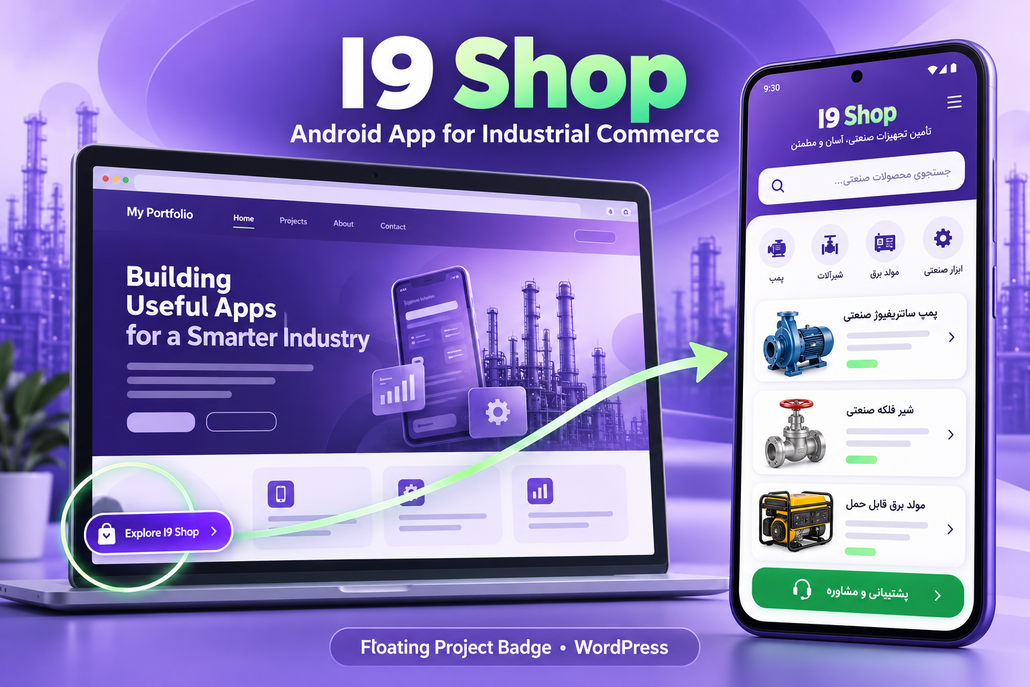
I wanted visitors to KiaApp to easily discover I9 Shop — Android App for Industrial Commerce. While checking the project’s visibility on my website, I reviewed the navigation settings and configured a floating badge using AnchorBadge.
Checking the website’s cache
I initially considered whether caching explained differences between the editor and the live website. WP-Optimize was installed but inactive, and I did not identify another active page-cache plugin. Hosting or CDN caching remained a possibility, but cache clearing was not confirmed.
Setting up the project badge
I configured AnchorBadge to display a project image in the bottom-left corner of the homepage. Clicking it would open the I9 Shop introduction page.
| Setting | Value |
|---|---|
| Badge Type | Image Badge |
| Image | I9 Shop project screenshot |
| Position | Bottom Left |
| Horizontal / Vertical Margin | 20 / 90 px |
| Desktop Size | 180 × 70 px |
| Mobile Size | 141 × 75 px |
| Background Color | Off |
| Image Fit | Contain |
| Padding | 4 px |
| Border Radius | 8 px |
| Link Type | External URL |
| Open in New Tab | Enabled |
| Close Button | Enabled |
| Close Behavior | Session only |
| Visibility | Front page only |
The Contain setting preserves the screenshot’s proportions. Because the image is tall, it appears small inside the wide badge area; a dedicated horizontal project graphic could make it easier to recognize.
Linking to I9 Shop
I set the badge’s destination to I9 Shop — Android App for Industrial Commerce. The page introduces the Android app and displays its storefront screenshot, app information, and download controls.
Saving and checking the result
The final step was to enable Badge Status and click Save Settings, then test the badge on desktop and mobile. The checks included confirming that it opened the correct project page and did not overlap other floating controls.
Adding the badge and adding a project to the Work dropdown are separate changes: each needs its own configuration and verification.