Why Users Complain About Digital Assistants
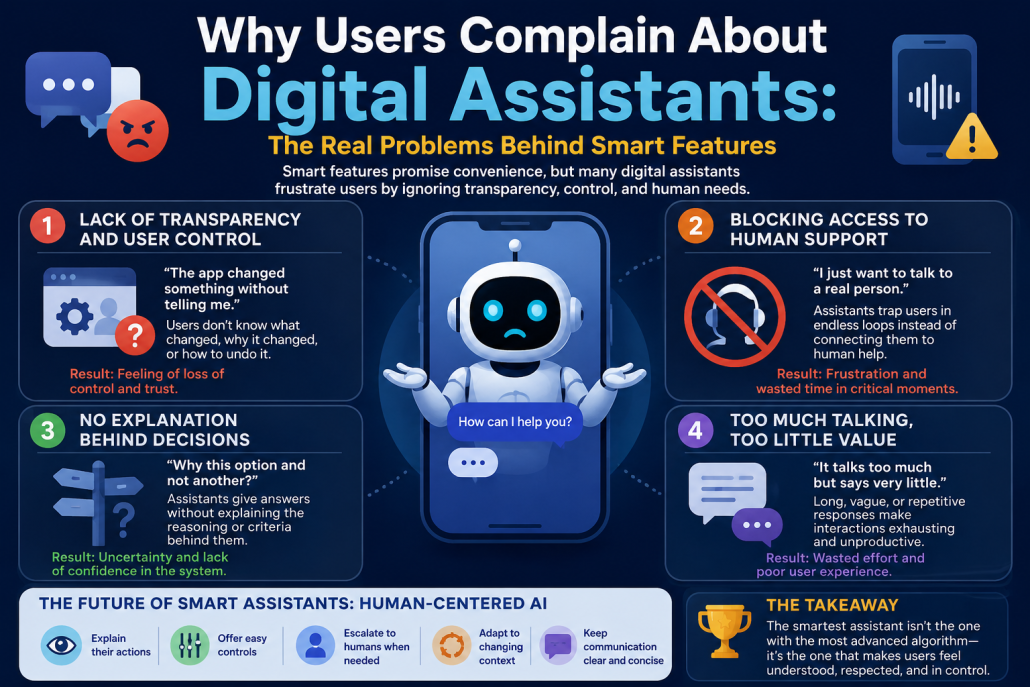
As smart applications continue to evolve, digital assistants, AI recommendations, and automation tools have become central to modern user experiences. From shopping apps to banking platforms, these intelligent features promise convenience, speed, and personalization.

But there’s a growing problem.

Based on insights from KiaApp’s analysis of smart app behavior, many users are increasingly frustrated—not because the technology is weak, but because it often fails to align with real human expectations.

The biggest complaints about digital assistants reveal one clear truth:

Intelligence without transparency creates distrust.

1. Lack of Transparency and User Control

One of the most common complaints about digital assistants is simple:

“The app changed something without telling me.”

This frustration points to a serious flaw in many AI-powered systems. Digital assistants often make decisions behind the scenes—changing settings, filtering content, triggering workflows, or saving personal preferences—without clearly explaining why.

While automation is designed to save time, hidden decisions can feel invasive.

Users want three things:

* To know what changed

* To know why it changed

* To have the power to undo or adjust it

Without these controls, even advanced AI features feel unpredictable.

Why it matters:

A smart assistant should support human decisions, not replace them without permission.

⸻

2. Blocking Access to Human Support

Another major complaint sounds like this:

“I just want to talk to a real person.”

This is one of the most damaging mistakes in digital assistant design.

Instead of helping users solve problems, some assistants trap them in endless loops of automated replies, repetitive questions, and irrelevant suggestions.

This becomes especially critical in industries like:

* Banking

* Insurance

* Healthcare

* Travel

In these situations, users are often stressed and need fast, accurate human help.

When AI refuses to step aside, it stops being helpful and becomes a barrier.

Best practice:

Smart systems must know their limits and provide a clear path to human support.

⸻

3. No Explanation Behind Decisions

A major weakness in many AI assistants is the inability to explain:

“Why this option and not another?”

For example:

* Why was this product recommended?

* Why was this payment method selected?

* Why did the app choose this route or schedule?

Most assistants give answers without showing the reasoning behind them.

This creates uncertainty.

If users don’t understand the logic, they can’t judge whether the recommendation matches their actual needs.

This is where trust breaks.

The solution:

AI should explain its reasoning in simple language, especially when multiple options exist.

⸻

4. Too Much Talking, Too Little Value

Another common complaint:

“It talks too much but says very little.”

Many digital assistants overload users with:

* Long responses

* Generic explanations

* Repetitive instructions

* Unclear answers

This becomes even worse when the assistant misunderstands the same question multiple times.

Instead of reducing effort, the interaction becomes exhausting.

Good digital assistants should be:

* Fast

* Direct

* Context-aware

* Easy to understand

Users value clarity more than complexity.

⸻

The Future of Smart Assistants: Human-Centered AI

The future of AI-powered apps depends on one important principle:

Respect the user’s intent.

Digital assistants should:

✔ Explain their actions

✔ Offer easy controls

✔ Escalate to humans when needed

✔ Adapt to changing context

✔ Keep communication clear and concise

The smartest assistant is not the one with the most advanced algorithm.

It’s the one that makes users feel understood, respected, and in control.

Final Thought

Smart features are no longer optional in modern apps.

But if they ignore transparency, flexibility, and human needs, they quickly become a source of frustration.

The lesson is clear:

Technology should feel like help—not like resistance.
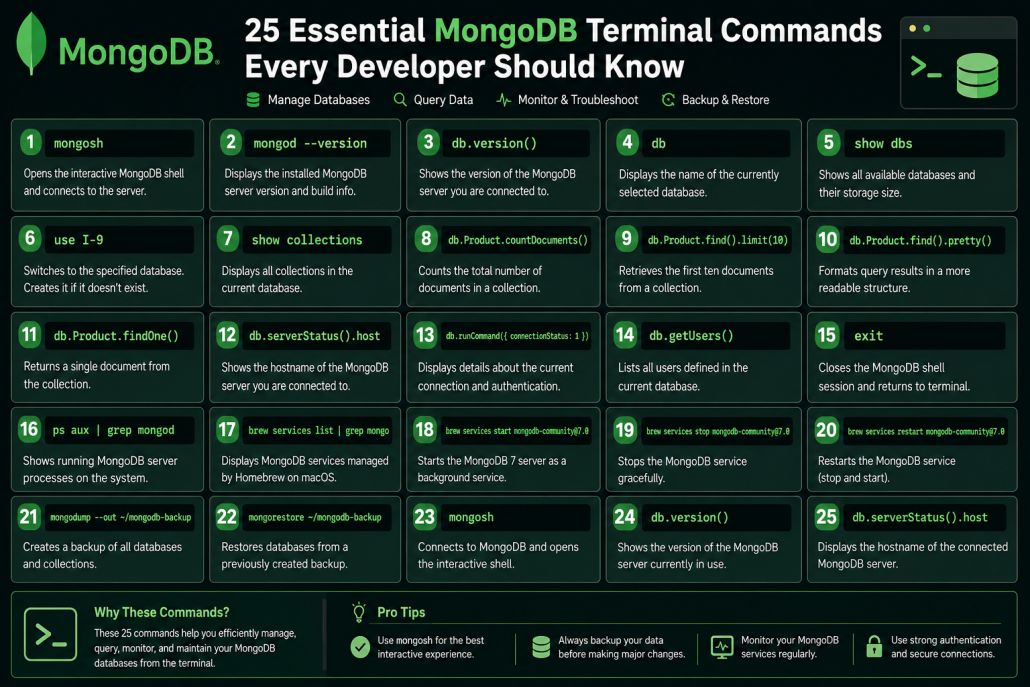
25 Essential MongoDB Terminal Commands Every Developer Should Know

MongoDB Terminal Commands Guide

1. Start MongoDB Shell

mongosh

Opens the interactive MongoDB shell and connects to the running

database server.


Allows you to execute queries, manage databases, and inspect

collections directly from the terminal.


2. Check MongoDB Version

mongod --version

Displays the installed MongoDB server version and build information.


Useful for verifying upgrades and checking compatibility with

applications.


3. Check Running Server Version

db.version()

Shows the version of the MongoDB server you are currently connected

to.


Helps confirm that Compass, applications, and the shell are using the

expected MongoDB version.


4. Show Current Database

db

Displays the name of the database currently selected in the shell.


Useful for confirming where your commands and queries will be

executed.


5. List Databases

show dbs

Shows all available databases on the connected MongoDB server.


Also displays the approximate storage size used by each database.


6. Switch Database

use <collectionName>

Changes the active database to the specified database name.


If the database does not exist, MongoDB creates it automatically when

data is added.


7. List Collections

show collections

Displays all collections inside the current database.


Collections are similar to tables in traditional SQL databases.


8. Count Documents

db.<collectionName>.countDocuments()

Counts the total number of documents in a collection.


Useful for checking data volume and verifying imports or deletions.


9. Show First 10 Documents

db.<collectionName>.find().limit(10)

Retrieves the first ten documents from a collection.


Provides a quick preview of stored data without loading the entire

collection.


10. Pretty Print Results

db.<collectionName>.find().pretty()

Formats query results in a more readable structure.


Helpful when inspecting complex JSON documents with many fields.


11. Find One Document

db.<collectionName>.findOne()

Returns a single document from the collection.


Useful for quickly examining document structure and field names.


12. Check Server Host

db.serverStatus().host

Shows the hostname of the MongoDB server you are connected to.


Helps determine whether you are connected locally or to a remote

server such as Atlas or Render.


13. Check Connection Information

db.runCommand({ connectionStatus: 1 })

Displays details about the current connection and authentication status.


Useful for troubleshooting user permissions and login issues.


14. Check Current Users

db.getUsers()

Lists all users defined in the current database.


Shows usernames, roles, and access permissions.


15. Exit MongoDB Shell

exit

Closes the MongoDB shell session safely.


Returns you to the normal terminal command prompt.


16. Check Running MongoDB Process

ps aux | grep mongod

Shows all MongoDB server processes currently running on the system.


Useful for identifying which MongoDB version and configuration are

active.


17. Check MongoDB Service Status

brew services list | grep mongo

Displays MongoDB services managed by Homebrew on macOS.


Shows whether each service is running, stopped, or reporting errors.


18. Start MongoDB 7

brew services start mongodb-community@7.0

Starts the MongoDB 7 server as a background service.


Ensures the database automatically runs and accepts connections.


19. Stop MongoDB

brew services stop mongodb-community@7.0

Stops the MongoDB service gracefully.


Useful before upgrades, maintenance, or configuration changes.


20. Restart MongoDB

brew services restart mongodb-community@7.0

Stops and starts MongoDB in a single command.


Often used after modifying configuration files or upgrading MongoDB.


21. Backup Database

mongodump --out ~/mongodb-backup

Creates a backup of all databases and collections.


Protects your data before upgrades, migrations, or major changes.


22. Restore Database

mongorestore ~/mongodb-backup

Restores databases from a previously created backup.


Useful for recovering lost data or migrating to a new MongoDB installation.


23. Most Useful Command: Open MongoDB

mongosh

Connects to MongoDB and opens the interactive shell.


The starting point for most database management and troubleshooting

tasks.


24. Most Useful Command: Verify Version

db.version()

Shows the version of the MongoDB server currently in use.


Useful for verifying upgrades and troubleshooting compatibility issues.


25. Most Useful Command: Verify Host

db.serverStatus().host

Displays the hostname of the connected MongoDB server.


Helps confirm whether you are connected to localhost, Atlas, Render,

or another remote server.

Flutter Terminal Commands Guide: Run, Debug, Build, and Deploy Apps from Android Studio for Android, iOS, Web, and Desktop

Flutter Terminal Commands Guide

1. Go to Your Flutter Project

cd path/to/your/flutter_project

Changes the terminal’s current folder to your Flutter project directory.


2. Check Flutter Installation

flutter doctor

Verifies that Flutter, Dart, Android Studio, Xcode, and other required tools are installed correctly.


3. Get Packages

flutter pub get

Downloads and installs all dependencies listed in your pubspec.yaml file.


4. See Available Devices

flutter devices

Lists all connected devices and emulators that can run your Flutter app.


5. Run the App

flutter run

Builds and launches the application on the default available device.

Run on a Specific Device

flutter run -d <device_id>

Runs the application on a selected device instead of the default one.

Run on macOS

flutter run -d macos

Launches the Flutter application as a native macOS desktop app.

Run in Google Chrome

flutter run -d chrome

Runs the application as a web app inside Google Chrome.

Run in Microsoft Edge (Windows)

flutter run -d edge

Runs the Flutter web application in Microsoft Edge.

Run in Safari (macOS)

Flutter does not directly support Safari.

flutter run -d web-server

Starts a local web server and provides a URL that can be opened in Safari.

Then open the displayed URL, such as:

http://localhost:8080

Useful Commands

Hot Reload

r

Applies code changes instantly while preserving the application’s current state.

Hot Restart

R

Restarts the Flutter application and reloads all code from scratch.

Quit

q

Stops the running Flutter application and exits the debug session.


Clean Project

flutter clean
flutter pub get

Removes old build files and downloads fresh dependencies to fix many project issues.


Build macOS App

flutter build macos

Creates a release-ready macOS desktop application.


Build Android APK

flutter build apk

Generates an Android APK file for direct installation or testing.


Build Android App Bundle (Google Play)

flutter build appbundle

Creates an AAB file optimized for publishing on the Google Play Store.


Build iOS App

flutter build ios

Generates an iOS build that can be opened in Xcode for App Store submission.


Build Web App (PWA / Web Application)

flutter build web

Creates optimized HTML, JavaScript, and asset files for website deployment.

The generated files are stored in:

build/web

Serve the Built Web App Locally

python3 -m http.server 8000 --directory build/web

Starts a lightweight local web server to preview the production web build.

Then open:

http://localhost:8000

in Chrome, Edge, Safari, or another browser.


Check Flutter Version

flutter --version

Displays the installed Flutter and Dart versions.


Upgrade Flutter

flutter upgrade

Updates Flutter to the latest stable release.


View Connected Emulators

flutter emulators

Shows all available Android and iOS emulators installed on your system.


Analyze Project

flutter analyze

Checks your code for errors, warnings, and best-practice issues.


Run Tests

flutter test

Executes all unit and widget tests in the project.


Upgrade Dependencies

flutter pub upgrade

Updates project dependencies to newer compatible versions.


Benefits of Deploying Flutter Applications

One of Flutter’s greatest strengths is the ability to deploy the same codebase to Web, iOS, Android, and Desktop platforms.

Web (PWA / Web Application)

  • Users can access the application instantly through a browser.
  • No installation is required.
  • Easy to share through a URL.
  • Ideal for business websites, dashboards, SaaS platforms, and customer portals.
  • Lower deployment and maintenance costs.

iOS

  • Access to Apple’s App Store ecosystem.
  • Reaches iPhone and iPad users worldwide.
  • Strong user engagement and premium audience.
  • Supports Apple services such as Apple Pay and Sign in with Apple.
  • Delivers a native, high-performance user experience.

Android

  • Access to the world’s largest mobile platform.
  • Reach billions of users through Google Play.
  • Supports a wide range of devices and price points.
  • Easy distribution and testing.
  • Strong integration with Google services and APIs.

Why Flutter?

Instead of maintaining separate projects for Web, iOS, and Android, Flutter allows developers to build all platforms from a single codebase. This reduces development costs, speeds up releases, simplifies maintenance, and provides a consistent user experience across devices.

About Kia Malek Mohammadi

App & AI Consultant | Mobile Apps, Automation & Digital Solutions

Hello, I’m Kia Malek Mohammadi,

an App & AI Consultant focused on helping startups and businesses transform ideas into practical digital products.

My work combines mobile app development, artificial intelligence, business automation, and modern software architecture to create solutions that are scalable, reliable, and designed for long-term growth. Whether it is a native iOS application built with SwiftUI, a cross-platform Flutter app, AI-powered automation, or backend integration, I focus on delivering technology that solves real business problems.

My background in engineering has shaped the way I approach software development. I believe successful products are built through a combination of technical precision, structured problem-solving, and a clear understanding of business needs. Rather than simply writing code, I aim to create systems that improve efficiency, automate repetitive tasks, and help organizations operate more effectively.

Over the years, I have worked across multiple areas of technology, including mobile applications, web development, AI integration, backend services, databases, and digital transformation projects. This broad perspective allows me to connect technical implementation with business objectives and user experience.

Technology is more than a profession for me. It is a field of continuous learning, creativity, and innovation. I enjoy transforming complex challenges into simple, practical solutions that people can use every day.

At KiaApp, my goal is straightforward: build useful software, create measurable value, and help businesses grow through technology.

Core Areas of Expertise

  • Mobile App Development (SwiftUI & Flutter)
  • Artificial Intelligence Integration
  • Business Automation
  • Backend & Cloud Solutions
  • Database Design & Management
  • Startup Technology Consulting
  • Web Development & Digital Solutions

If you have an idea, a startup, or a business process that could benefit from technology, I would be happy to discuss how we can turn it into a practical solution.

Dev Beats Homesickness

Rebuilding Life Through Technology After an Accident

Rebuilding Life Step by Step Through Technology

After the accident, life was no longer the same. Simple daily routines, mental focus, energy, and even the feeling of living a normal life had changed. But slowly, technology, programming, and the digital world became part of my path back.

What started as simply working with computers and building apps and websites gradually turned into focus, mental peace, purpose, and rebuilding life itself.

A World That Allowed Me to Move Again

I spend many hours in front of a screen — programming, designing, translating, and creating digital ideas. But for me, this is not just “work.”

The digital world became a place where I could once again feel useful, creative, and connected to life.

When some parts of real life become difficult, creating things in the digital world can bring back a sense of movement, hope, and progress.

Why Rebuilding Life Through Technology Helped Me

Deep Focus and Escaping Mental Chaos

Whenever I work on building an app or designing a website, my mind enters a deep state of concentration. Hours pass without me even noticing.

Problem-solving, writing code, and creating something new help direct the mind away from stress, exhaustion, and emotional pressure.

The Feeling of Progress and Achievement

After the accident, even some simple daily tasks became difficult. But completing a project, launching an app, or solving a programming problem brought back my sense of progress.

Every small project reminded me that it is still possible to build, grow, and move forward.

Staying Connected to the World

Technology helped reduce the feeling of being disconnected from the world. Through web development, translation, and digital projects, I can still stay connected with people, cultures, and ideas from different places.

Sometimes a screen can become a window to the outside world.

Freedom and Flexibility Through Technology

One of the most beautiful aspects of the digital world is the freedom to work from almost anywhere. This flexibility helps people adapt more easily to physical and mental challenges while finding their own rhythm in life.

The Reality of Rebuilding Life Through Technology

Positive Sides

  • A renewed sense of purpose and meaning
  • Mental growth and creativity
  • Professional independence
  • Continuous learning
  • Creating useful and meaningful things

Challenges

  • Eye and physical fatigue
  • Long hours of sitting
  • Mental pressure
  • Occasional feelings of isolation

That is why I try to create balance between work and health through walking, rest, light exercise, and staying connected with family and friends.

Final Thoughts on Rebuilding Life Through Technology

“Code is not just technology; sometimes it becomes a way to rebuild yourself.”

For me, the digital world is not only a career or a hobby. Rebuilding life through technology helped me regain focus, rediscover meaning, and adapt to a new chapter of life.

Sometimes a screen is not an escape from life;
sometimes it is the beginning of rebuilding it.

Novamira WordPress MCP Server Explained: Features, Risks, and AI Capabilities

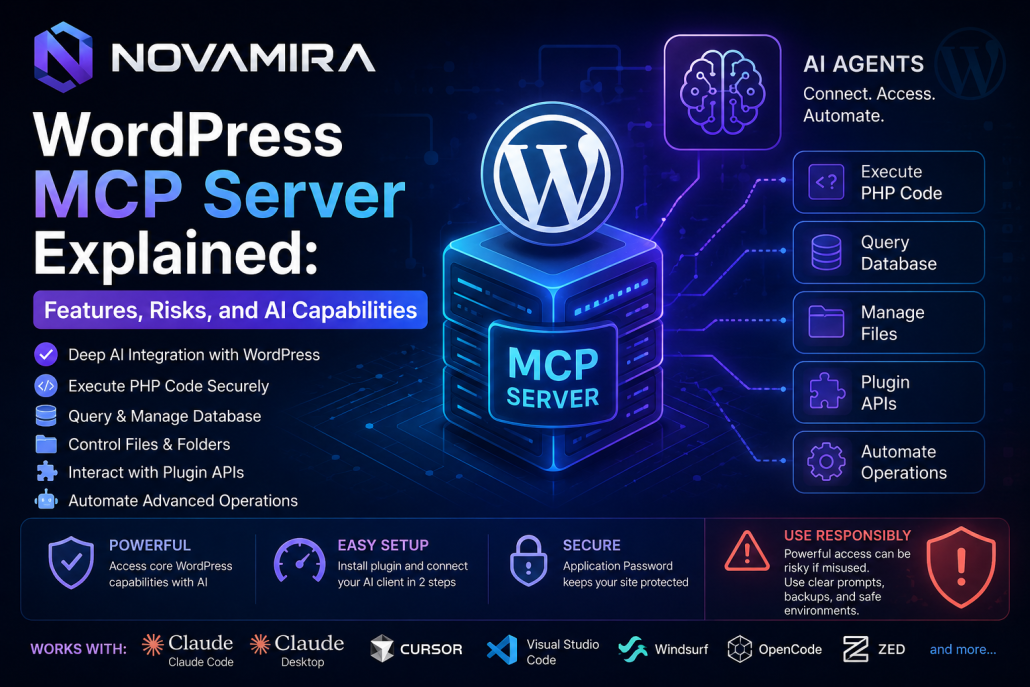
Novamira is a free and open-source WordPress MCP server developed

by the Dynamic.ooo team to create a deep connection between

artificial intelligence and WordPress websites. It allows AI agents to

directly access the WordPress environment, execute PHP code, manage

databases, control files, interact with plugin APIs, and automate

advanced website operations through modern AI clients.

Unlike many WordPress MCP servers that provide only limited

predefined tools, Novamira offers a far more flexible and powerful

architecture. Instead of restricting AI to a few fixed functions, it gives

AI access to the core capabilities of WordPress itself. Because

Novamira can securely execute PHP code inside WordPress, AI agents

can perform almost anything that WordPress can do. Developers can

also create custom AI abilities, intelligent workflows, and advanced

automation systems on top of the platform. This creates a highly

flexible environment for backend development, website management,

content automation, and AI-powered operations.

One of Novamira’s biggest advantages is its fast and simple

installation process. Setup only requires two steps. First, the Novamira

plugin is installed on the WordPress website. Then, the preferred AI

client is connected using the MCP configuration automatically

generated inside the WordPress dashboard. Novamira supports Claude

Code, Claude Desktop, Cursor, Visual Studio Code, Windsurf,

OpenCode, Zed, and many other MCP-compatible AI clients.

After installation, WordPress generates a secure Application Password

that allows authenticated communication between the AI client and the

WordPress environment. This password must remain private because it

provides direct access to website operations and AI automation

features.

Inside the WordPress dashboard, Novamira automatically generates the

commands required for MCP integration. Connecting AI clients such

as Claude Desktop or Cursor simply involves copying the generated

configuration into the MCP Server settings of the selected client. Once

the configuration is saved and the client is restarted, WordPress

becomes available as an active MCP server directly inside the AI

environment.

After enabling the “AI Abilities” option, Novamira unlocks advanced

AI-powered capabilities for the website. AI agents can automate

workflows, manage backend operations, interact with plugins, and

dynamically extend website functionality using PHP execution and

custom automation logic.

However, the same deep access that makes Novamira powerful can

also make it risky if used carelessly. Because AI agents can execute

PHP code and interact directly with WordPress internals, they may

unintentionally modify files, change plugin settings, edit PHP

functions, or perform actions that the website owner does not want.

Poorly written prompts or unrestricted permissions may cause

unwanted modifications inside the WordPress environment.

For this reason, users should always provide clear and controlled

instructions to AI agents. It is highly recommended to use backups,

staging environments, restricted permissions, and careful supervision

before enabling advanced AI automation on live production websites.

Novamira represents a major step forward in AI-

powered WordPress development by combining open-

source flexibility, MCP compatibility, deep WordPress

integration, and intelligent automation into a single

platform.

AI Engine vs AI Power: Best AI Plugin for WordPress in 2026

Meow Apps is a well-known WordPress development company recognized for creating advanced artificial intelligence tools for modern websites. The company is best known for developing AI Engine, one of the most powerful AI plugins for WordPress. Meow Apps focuses on integrating modern AI technologies such as ChatGPT, Google Gemini, Claude AI, image generation, embeddings, automation, and intelligent workflows directly into WordPress websites. Its tools are designed for developers, businesses, bloggers, and website owners who want to bring artificial intelligence into content creation, customer support, SEO optimization, and website automation.

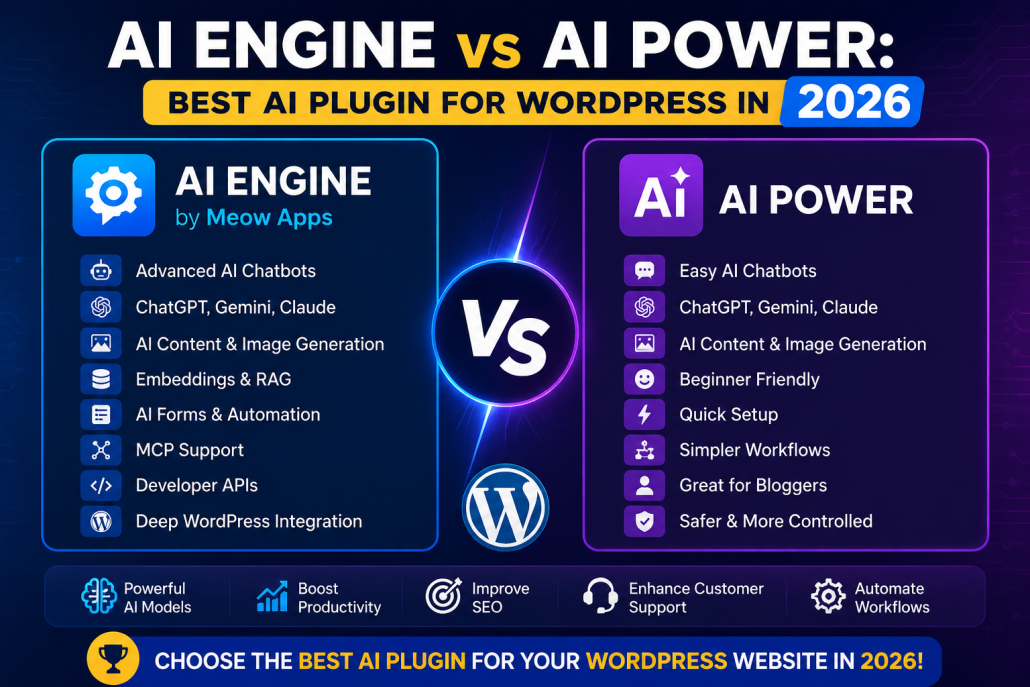
AI Engine, developed by Meow Apps, is an advanced AI plugin for WordPress that transforms websites into intelligent AI-powered platforms. The plugin supports OpenAI models like ChatGPT and GPT APIs, Google Gemini, Anthropic Claude, and several other modern AI systems. AI Engine allows users to create AI chatbots, generate SEO-friendly articles, produce AI-generated images, build custom AI forms, and automate content workflows directly inside the WordPress dashboard. One of its strongest features is support for embeddings and Retrieval-Augmented Generation (RAG), enabling websites to build intelligent knowledge bases and context-aware AI assistants. AI Engine also provides extensive developer APIs, deep WordPress integration, and support for MCP (Model Context Protocol), making it highly attractive for developers and advanced AI projects.

AI Power is another popular WordPress AI plugin that competes with AI Engine in the growing AI website ecosystem. AI Power focuses more on simplicity, beginner-friendly setup, and fast AI content creation for bloggers, marketers, and general website owners. Similar to AI Engine, it supports OpenAI, Google Gemini, and Claude AI models while offering chatbot functionality, AI content generation, and AI image creation tools. However, AI Power provides a more simplified experience with fewer advanced developer tools and less complex AI workflow customization.

When comparing AI Engine and AI Power, both plugins provide strong AI chatbot capabilities, AI-assisted content generation, AI image creation, and support for modern AI models such as ChatGPT, Gemini, and Claude. However, AI Engine stands out because of its deeper WordPress integration, advanced automation features, extensive APIs, and stronger embeddings and RAG support. This allows developers to create more intelligent and scalable AI systems directly inside WordPress websites. AI Power, on the other hand, prioritizes ease of use and simplified AI functionality, making it more suitable for users who want quick AI integration without advanced configuration.

AI Engine is generally considered the better solution for developers, AI enthusiasts, automation projects, and websites requiring advanced AI functionality. Because it provides deeper system access and more powerful automation tools, careful configuration is recommended on live production websites. AI Power is often considered safer and easier for beginners because it offers more controlled functionality with fewer advanced system-level features. Ultimately, AI Engine is ideal for advanced AI integration and custom WordPress development, while AI Power is best suited for bloggers, marketers, and users seeking simple AI-powered website tools.

AI Engine for WordPress

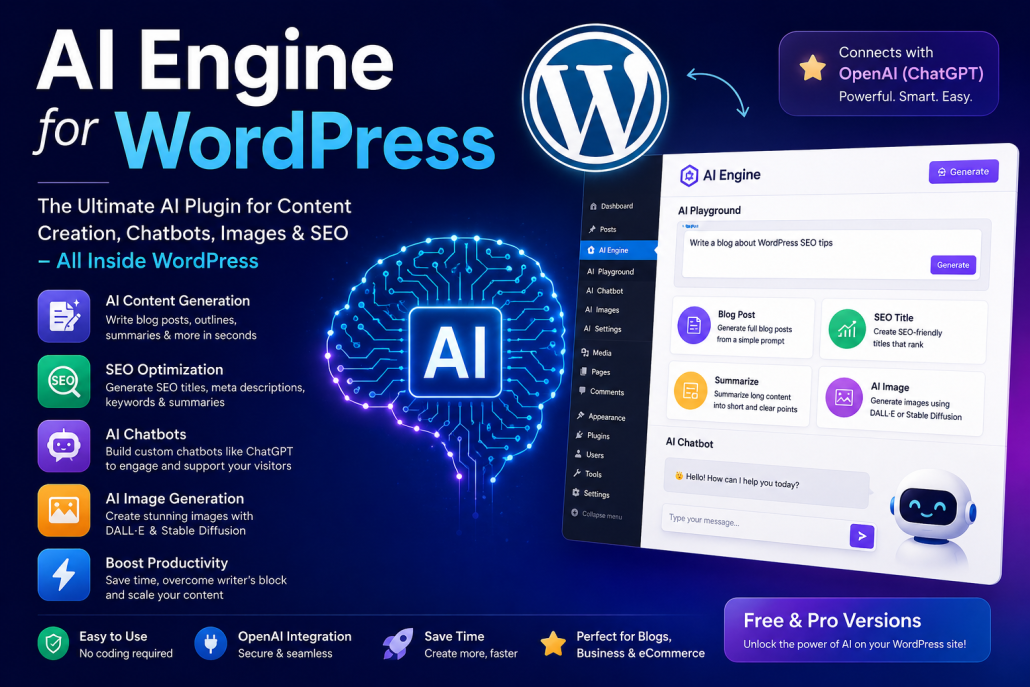
AI Engine WordPress plugin dashboard interface showing AI content generation, AI chatbot, SEO optimization, OpenAI integration, and AI image generation features for WordPress websites.

What if your WordPress website could automatically

write blog posts, generate AI images, create SEO titles,

summarize articles, and even chat with your visitors

like ChatGPT? Thanks to modern artificial intelligence

tools, this is now possible directly inside WordPress.

One of the most powerful plugins currently available

for this purpose is AI Engine, a feature-rich WordPress

AI plugin developed by Jordi Meow. This plugin

connects your website to OpenAI, the same technology

behind ChatGPT, and allows website owners,

bloggers, developers, and businesses to integrate

advanced AI tools into their WordPress dashboard

without complicated coding.

AI Engine is designed to make content creation and website

management faster, easier, and more efficient. After installing the

plugin from the WordPress plugin directory, you simply connect it to

your OpenAI API key. Once connected, your website gains access to a

wide range of AI-powered capabilities. For example, if you are writing

a technology blog, you can type a short prompt such as “Write an

article about WordPress SEO tips for beginners,” and AI Engine will

generate a complete article draft within seconds. This is extremely

useful for bloggers who regularly publish content and need help

overcoming writer’s block or generating new ideas quickly.

Another powerful feature of AI Engine is its AI Playground. This

section allows users to experiment with prompts, create summaries,

generate outlines, brainstorm article ideas, or rewrite content in

different styles. For instance, a digital marketer could ask the AI to

create five catchy SEO-friendly titles for a blog post, while an app

developer could generate a quick tutorial introduction for SwiftUI or

Flutter projects. Instead of spending hours brainstorming, AI Engine

helps accelerate the creative process directly inside WordPress.

One of the most impressive features is the integrated AI chatbot

system. AI Engine allows you to create a custom chatbot similar to

ChatGPT and place it anywhere on your website using a shortcode. For

example, an e-commerce website could use the chatbot to answer

product questions automatically, while a personal blog could use it to

engage visitors and recommend articles. The chatbot can be

customized to match your website’s personality, control response

length, and even limit topics. This makes it useful for customer

support, lead generation, and user engagement.

AI Engine also supports AI image generation using technologies such

as DALL·E and Stable Diffusion. Users can create images directly

inside WordPress by simply typing prompts like “modern minimalist

workspace with AI technology” or “futuristic mobile app interface.”

These generated visuals can be used as blog thumbnails, placeholders,

hero sections, or idea visualizations. Although it does not fully replace

professional design software like Photoshop, it dramatically speeds up

content production for bloggers and creators.

The plugin also includes tools for SEO optimization. Users can

generate SEO-friendly titles, meta descriptions, keywords, and

summaries directly from the editor. For example, if you publish articles

about MongoDB, AI Engine can automatically create optimized

headlines such as “MongoDB Indexing Explained for Beginners” or

“How MongoDB Improves Database Performance.” This helps

improve search engine visibility while saving time.

The Pro version of AI Engine unlocks even more advanced features,

including memory-based chatbots, prompt templates, AI assistants

trained on your own content, and deeper customization options. For

businesses and professional websites, these advanced capabilities can

significantly improve productivity and automation.

Overall, AI Engine is one of the most complete and

lightweight AI plugins available for WordPress today.

It combines AI content writing, chatbot systems, image

generation, and SEO tools into a single platform.

Whether you run a blog, a business website, an e-

commerce store, or a technology platform, AI Engine

provides a practical and modern way to integrate

artificial intelligence directly into your WordPress workflow.

MongoDB Indexing Explained: Create, Use, and Delete Indexes in MongoDB

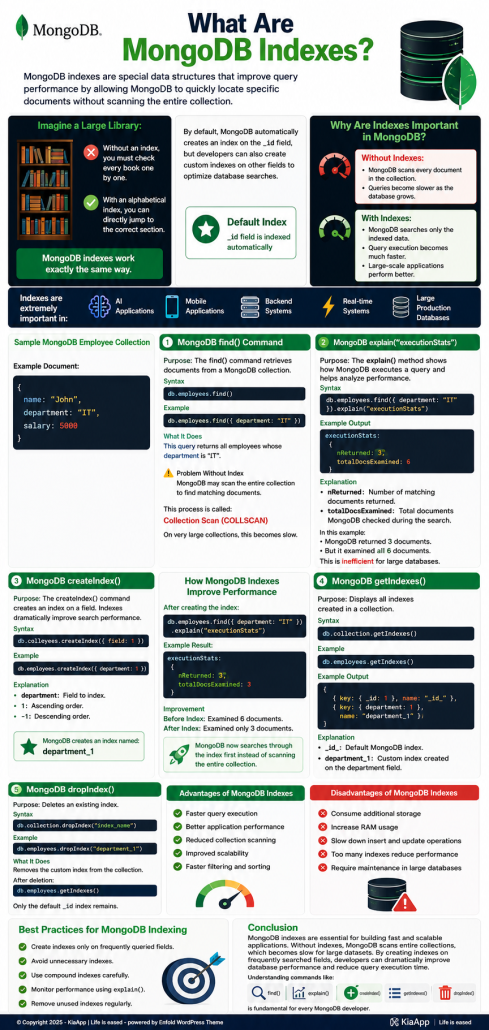
MongoDB indexing infographic explaining MongoDB indexes, query optimization, createIndex(), find(), explain(), getIndexes(), dropIndex(), database performance improvement, and best practices for scalable backend applications.

What Are MongoDB Indexes?

MongoDB indexes are special data structures that

improve query performance by allowing MongoDB to

quickly locate specific documents without scanning the

entire collection.

Imagine a large library:

* Without an index, you must check every book one by

one.

* With an alphabetical index, you can directly jump to

the correct section.

MongoDB indexes work exactly the same way.

By default, MongoDB automatically creates an index

on the _id field, but developers can also create custom

indexes on other fields to optimize database searches.

⸻⸻⸻

Why Are Indexes Important in MongoDB?

Without indexes:

* MongoDB scans every document in the collection.

* Queries become slower as the database grows.

With indexes:

* MongoDB searches only the indexed data.

* Query execution becomes much faster.

* Large-scale applications perform better.

Indexes are extremely important in:

* AI applications

* Mobile applications

* Backend systems

* Real-time systems

* Large production databases

⸻⸻⸻

Sample MongoDB Employee Collection

Example document:

{

   name: “John”,

   department: “IT”,

   salary: 5000

}

⸻⸻⸻

1. MongoDB find() Command

Purpose

The find() command retrieves documents from a

MongoDB collection.

Syntax

db.employees.find()

Example

db.employees.find({ department: “IT” })

What It Does

This query returns all employees whose department is “IT”.

Problem Without Index

MongoDB may scan the entire collection to find

matching documents.

This process is called:

* Collection Scan (COLLSCAN)

On very large collections, this becomes slow.

⸻⸻⸻

2. MongoDB explain(“executionStats”)

Purpose

The explain() method shows how MongoDB executes

a query and helps analyze performance.

Syntax

db.employees.find({ department: “IT”

}).explain(“executionStats”)

Example Output

executionStats:

{

   nReturned: 3,

   totalDocsExamined: 6

}

Explanation

* nReturned

    * Number of matching documents returned.

* totalDocsExamined

    * Total documents MongoDB checked during the search.

In this example:

* MongoDB returned 3 documents.

* But it examined all 6 documents.

This is inefficient for large databases.

⸻⸻⸻

3. MongoDB createIndex()

Purpose

The createIndex() command creates an index on a field.

Indexes dramatically improve search performance.

Syntax

db.collection.createIndex({ field: 1 })

Example

db.employees.createIndex({ department: 1 })

Explanation

* department

    * Field to index.

* 1

    * Ascending order.

* -1

    * Descending order.

MongoDB creates an index named:

department_1

⸻

How MongoDB Indexes Improve Performance

After creating the index:

db.employees.find({ department: “IT” }).explain(“executionStats”)

Example result:

executionStats:

{

   nReturned: 3,

   totalDocsExamined: 3

}

Improvement

Before index:

* Examined 6 documents.

After index:

* Examined only 3 documents.

MongoDB now searches through the index first instead

of scanning the entire collection.

⸻⸻⸻

4. MongoDB getIndexes()

Purpose

Displays all indexes created in a collection.

Syntax

db.collection.getIndexes()

Example

db.employees.getIndexes()

Example Output

[

   { key: { _id: 1 }, name: “_id_” },

   { key: { department: 1 }, name: “department_1” }

]

Explanation

* _id_

    * Default MongoDB index.

* department_1

    * Custom index created on the department field.

⸻⸻⸻

5. MongoDB dropIndex()

Purpose

Deletes an existing index.

Syntax

db.collection.dropIndex(“index_name”)

Example

db.employees.dropIndex(“department_1”)

What It Does

Removes the custom index from the collection.

After deletion:

db.employees.getIndexes()

Only the default _id index remains.

⸻⸻⸻

Advantages of MongoDB Indexes

* Faster query execution

* Better application performance

* Reduced collection scanning

* Improved scalability

* Faster filtering and sorting

⸻

Disadvantages of MongoDB Indexes

* Consume additional storage

* Increase RAM usage

* Slow down insert and update operations

* Too many indexes reduce performance

* Require maintenance in large databases

⸻⸻⸻

Best Practices for MongoDB Indexing

* Create indexes only on frequently queried fields.

* Avoid unnecessary indexes.

* Use compound indexes carefully.

* Monitor performance using explain().

* Remove unused indexes regularly.

⸻⸻⸻

Conclusion

MongoDB indexes are essential for building fast and scalable applications. Without indexes, MongoDB scans entire collections, which becomes slow for large datasets. By creating indexes on frequently searched fields, developers can dramatically improve database performance and reduce query execution time.

Understanding commands like:

* find()

* explain()

* createIndex()

* getIndexes()

* dropIndex()

is fundamental for every MongoDB developer.

Coding, My New Homeland: How Dev Beats Homesickness

My Digital Escape: Coding Away Homesickness 

Coding, My new Homeland

A Modern Nomad’s Story
I sit glued to the screen, pouring my lifetime into app

development, web dev, and translating. But here’s the magic: it’s not

just work; it’s my personal sanctuary against homesickness. Away

from home? No problem – code becomes my homeland!

Why This “Screen Life” Heals My Heart:

  • Flow State Magic: Building apps/websites = total immersion.
  • Time flies, worries fade. Psychologists call it “flow” – pure joy in
  • creation!
  • Global Connections: Translating links me to cultures (Iran?
  • World?). Web dev deploys sites seen by thousands – feels like
  • “home” reaching everywhere.
  • Achievement High: Deploy an app → Instant dopamine! Beats
  • scrolling social media for nostalgia.
  • Flexible Freedom: Work from anywhere (coffee shop, hotel).
  • Homesick? Code a family chat app!

Real Talk: Balancing It Out

  • Pros: Self-reliant income, skills forever (AI can’t fully replace
  • creativity yet), pleasant routine.
  • Cons: Eye strain, isolation. I use 20-20-20 rule (every 20 min, look
  • 20 ft away for 20 sec), daily walks, video calls home.

Inspo Quote: “Code is poetry” – I turn pixels into purpose. What’s next for me?