
Making the I9 Shop Floating Badge More Visible with AnchorBadge
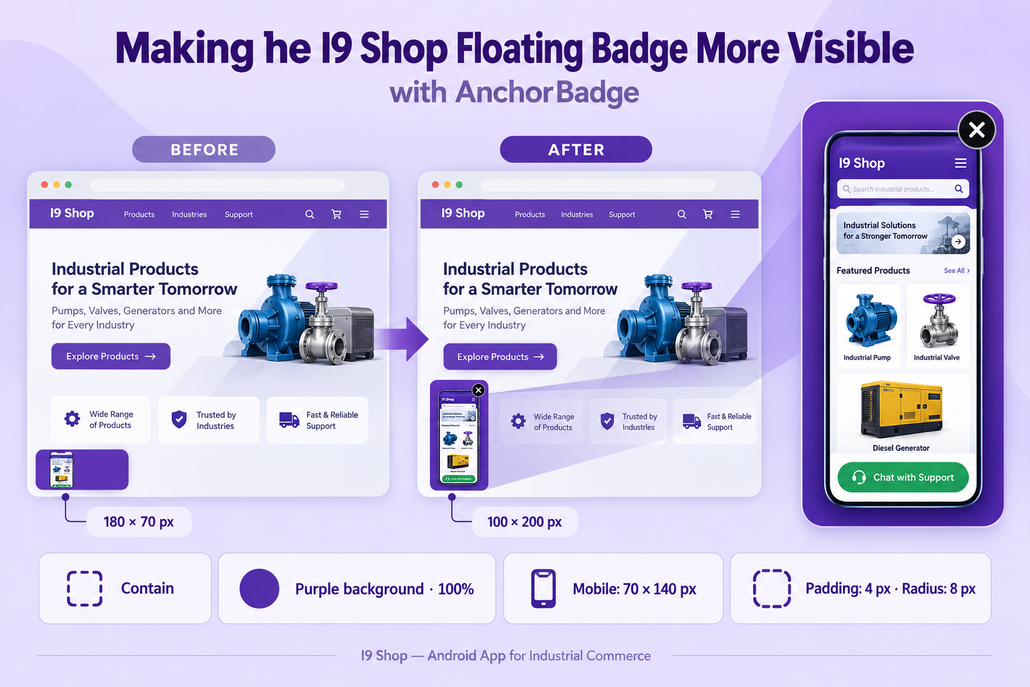
I added a floating badge to help visitors discover I9 Shop — Android App for Industrial Commerce. Initially, the app’s vertical screenshot appeared too small inside a short, wide container.
To improve visibility, I reduced the badge’s width, increased its height, and added a purple background. Here are the settings I used for the I9 Shop badge, one by one.
- I9 Shop Live Preview
I used the preview to check how the screenshot looked as I adjusted the badge. I also checked the actual website because the preview is approximate. - I9 Shop Badge Status: Active
I enabled the badge so visitors could see it on the homepage. - I9 Shop Badge Type: Image Badge
I selected Image Badge to display the app’s screenshot instead of a text announcement. - I9 Shop Badge Image
I uploaded a vertical screenshot of the I9 Shop mobile interface, showing its storefront and industrial products. - I9 Shop Background Color: Enabled
I added a dark purple background to distinguish the badge from the website’s light background. - I9 Shop Background Opacity: 100%
Full opacity gives the badge a solid, clearly visible background. - I9 Shop Image Fit: Contain
This keeps the entire screenshot visible without stretching or cropping it. - I9 Shop Position: Bottom Left
I placed the badge in the bottom-left corner, away from the chat controls on the right. - I9 Shop Horizontal Margin: 20 px
This creates a gap between the badge and the left edge of the screen. - I9 Shop Vertical Margin: 90 px
This raises the badge above the bottom edge to help separate it from other floating controls. - I9 Shop Desktop Size: 100 × 200 px
I changed the desktop dimensions from 180 × 70 px to 100 × 200 px. The taller, narrower container makes the mobile screenshot easier to recognize. - I9 Shop Mobile Size: 70 × 140 px
I used a smaller portrait container for screens up to 767 px wide, keeping the badge compact on mobile. - I9 Shop Padding: 4 px
This adds a small amount of space between the screenshot and the container’s edges. - I9 Shop Border Radius: 8 px
Rounded corners help the badge match the website’s design. - I9 Shop Link Type: External URL
I selected this option to enter the project page’s full address, even though the destination is on my own website. - I9 Shop Destination Page
The badge links to I9 Shop — Android App for Industrial Commerce, where visitors can learn about the Android app. - I9 Shop Open in New Tab: Enabled
Visitors can open the project page while keeping the homepage available. - I9 Shop Close Button: Enabled
Visitors can dismiss the badge if they need more space to read the page. - I9 Shop Close Button Style: Filled Circle
I chose a white close icon on a black background with 85% opacity so the control remains easy to identify. - I9 Shop Close Behavior: Session Only
I selected session-based dismissal rather than the longer-lived cookie option. - I9 Shop Visibility: Front Page Only
The badge promotes the app on the homepage without appearing on every page. - I9 Shop Save Settings
I clicked Save Settings, and the green “Settings saved!” message confirmed that the configuration was saved.
The updated portrait layout made the I9 Shop screenshot more visible while preserving its original proportions. The final check is to test the badge on a phone, verify its destination, and ensure it does not cover important content or buttons.